Monitoring a Campaign
Once your campaign has launched, Mailtrain provides a dashboard for monitoring its delivery and success.
Accessing the Campaign Statistics Page
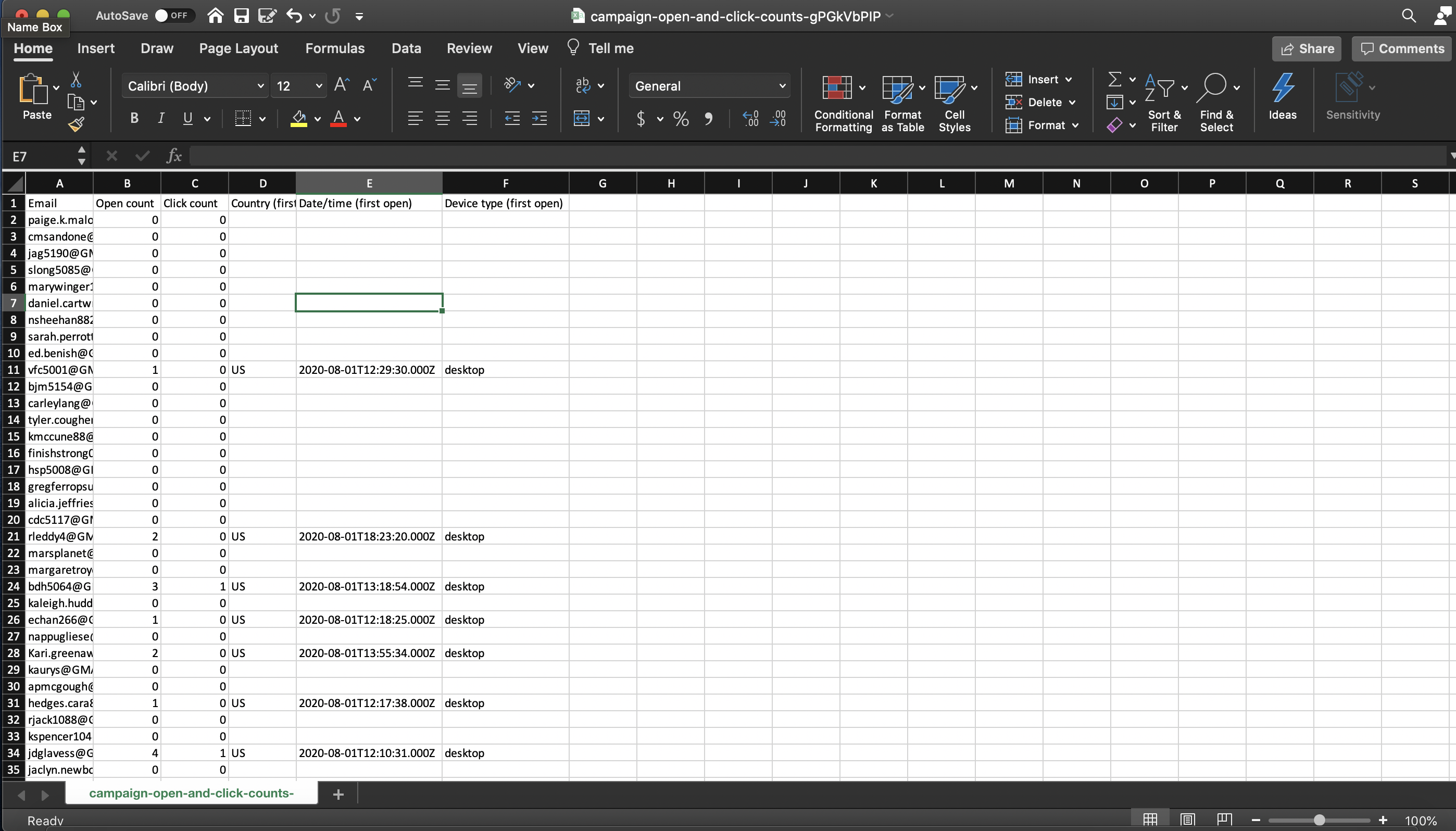
To access the Campaign Statistics page from the Campaign Status page, simply click the gray View Statistics button at the bottom of the page.
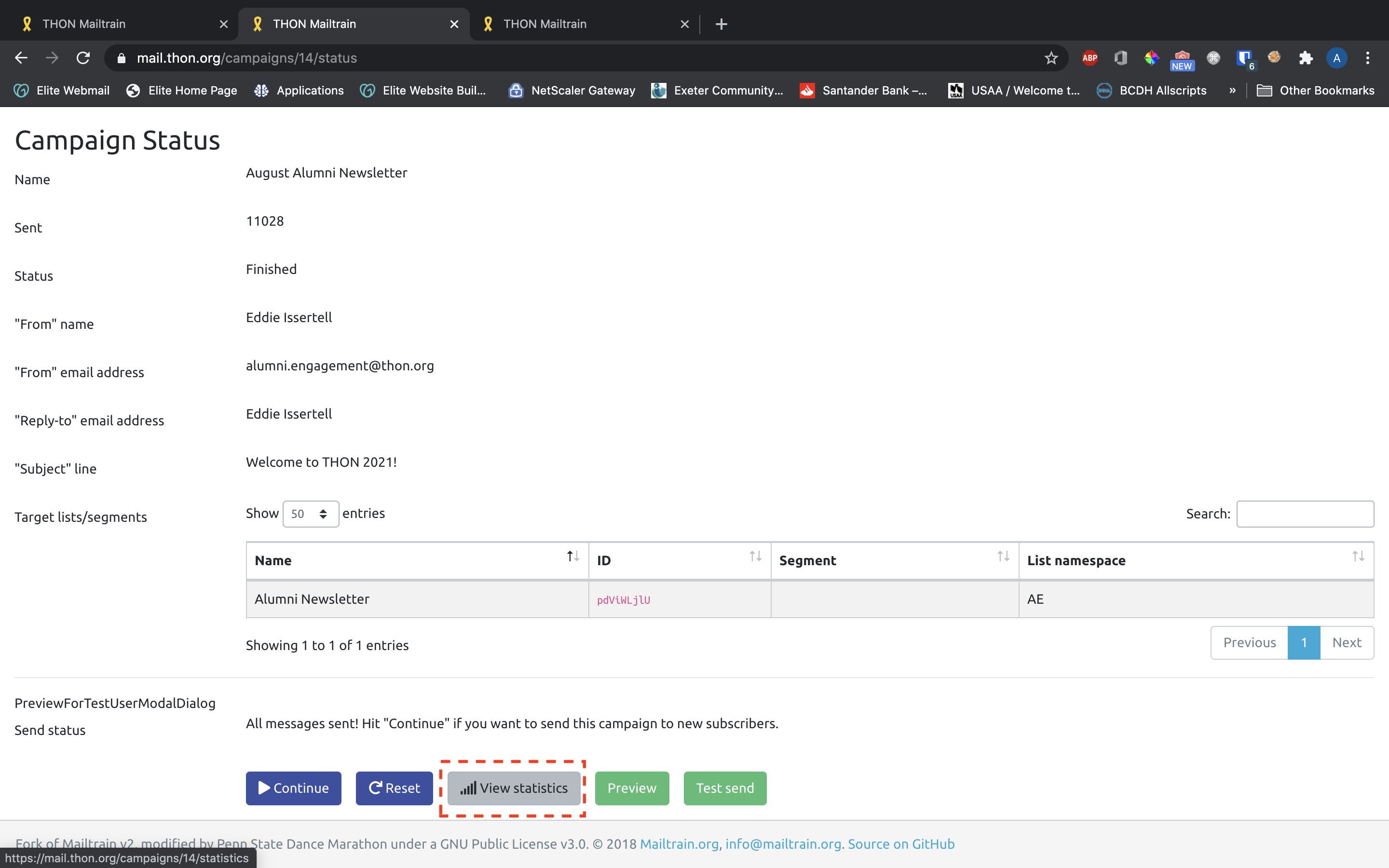
To access the Campaign Statistics page otherwise, click the network icon (increasing bars) on the desired campaign on the Campaigns tab of Mailtrain:
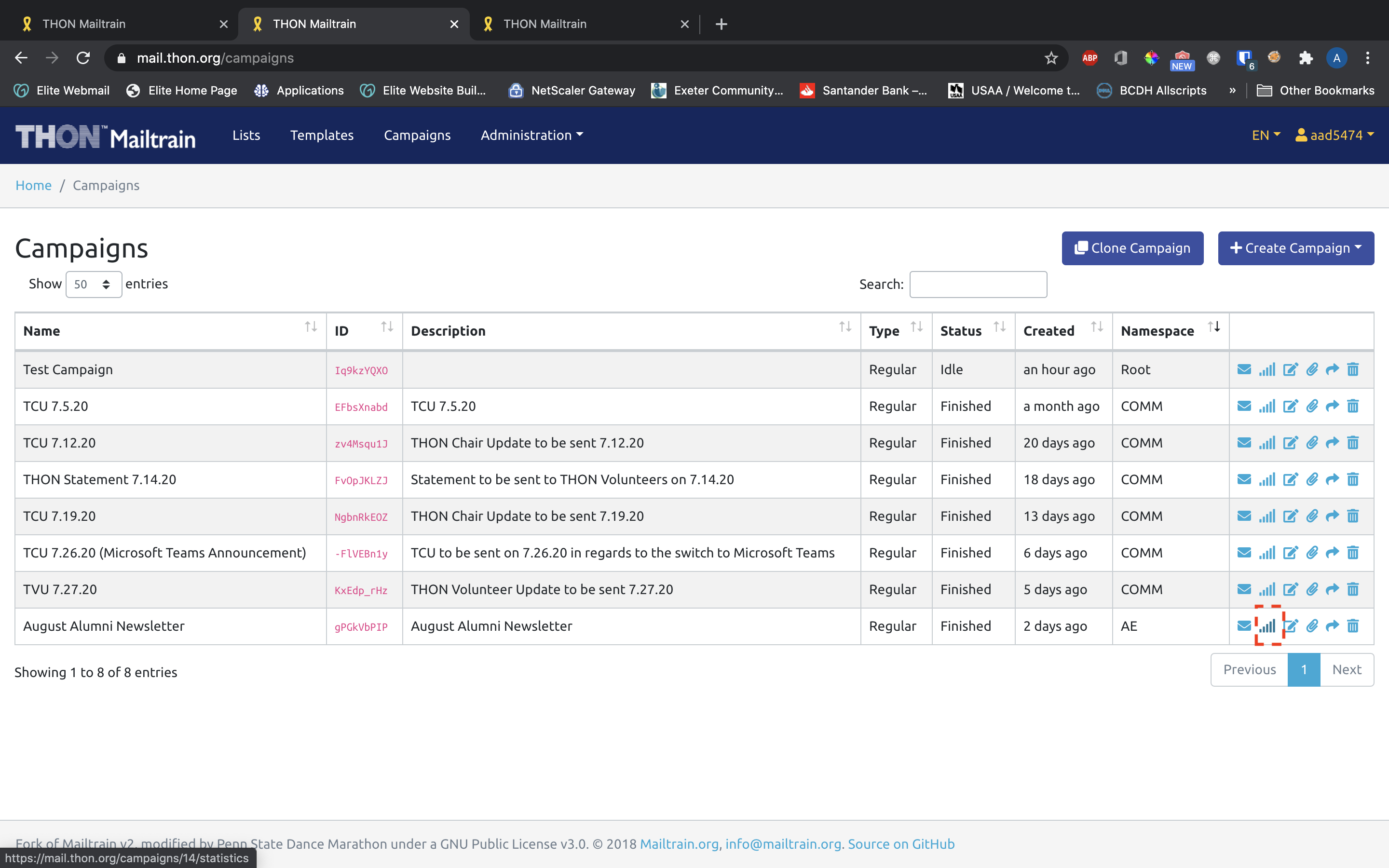
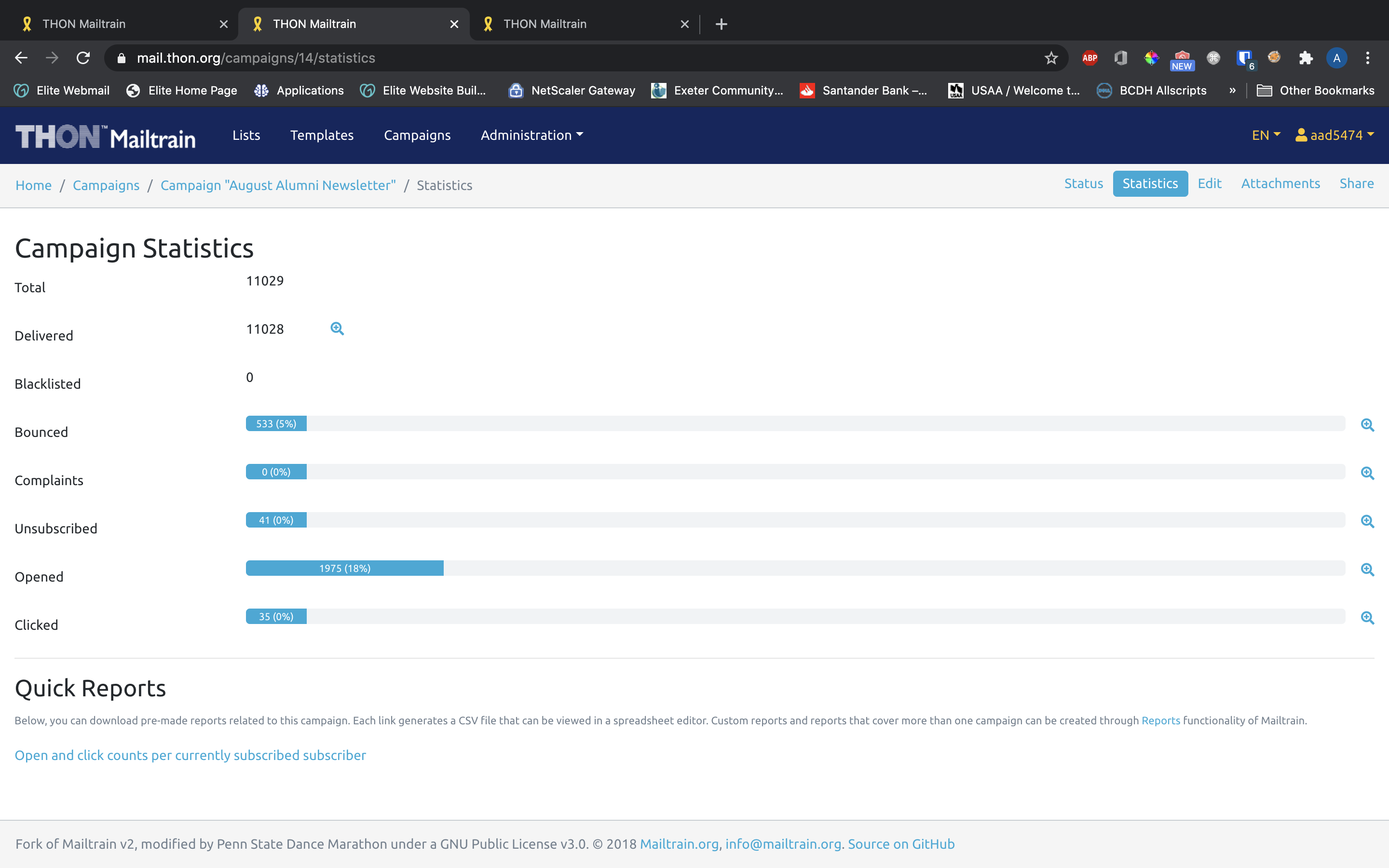
Both will take you to the Campaign Statistics page, which looks like this:
Campaign Metrics
The Campaign Statistics page provides a glass-pane view into several metrics indicating how successful the campaign was at reaching its target audience.
Total/Delivered
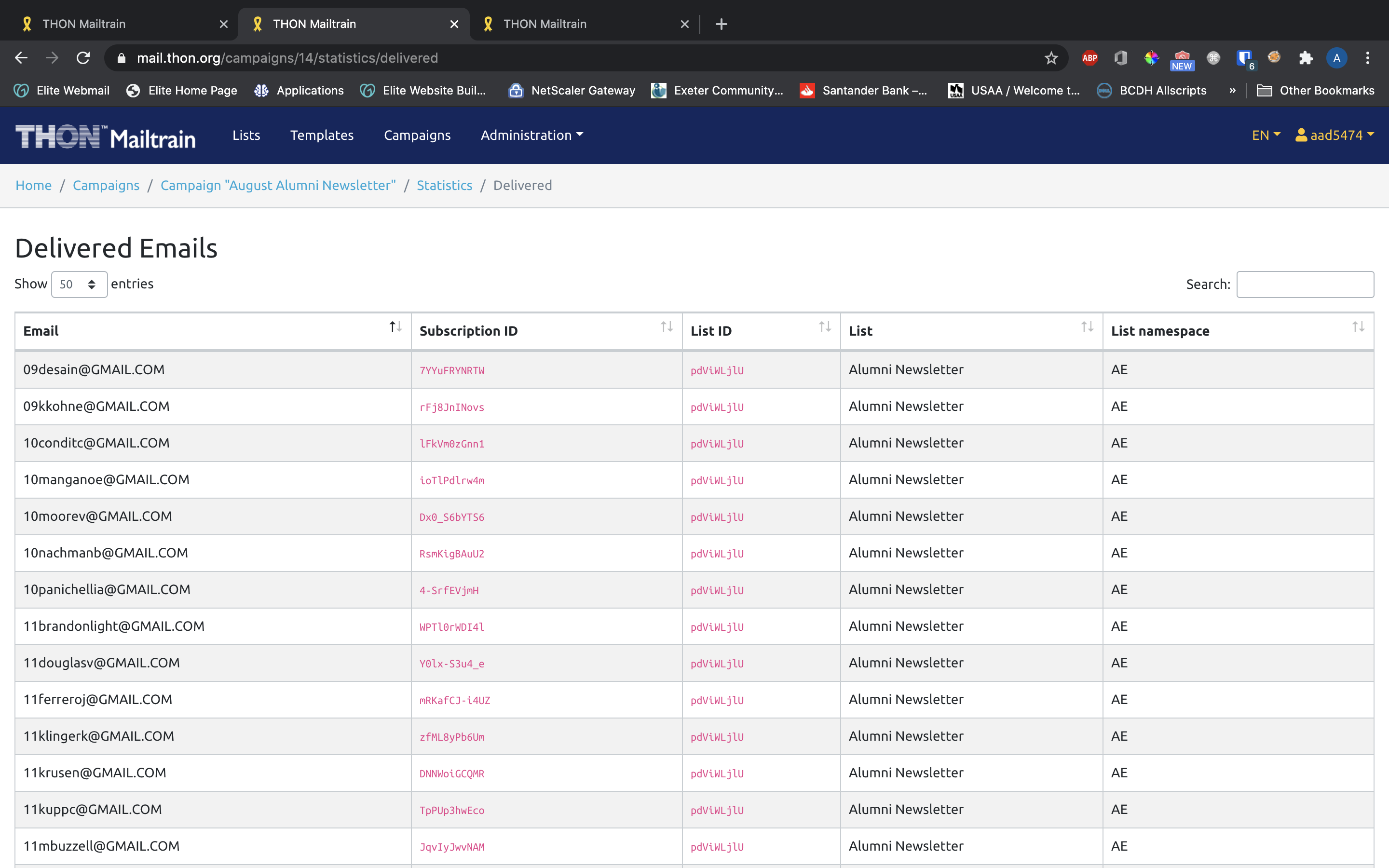
These two metrics indicate the total number of emails that were supposed to be sent and the number of emails that were actually sent, respectively. "Delivered" includes any email that left Mailtrain, even if it bounced. Click the magnifying glass for a full list of addresses that Mailtrain delivered to:
Bounced
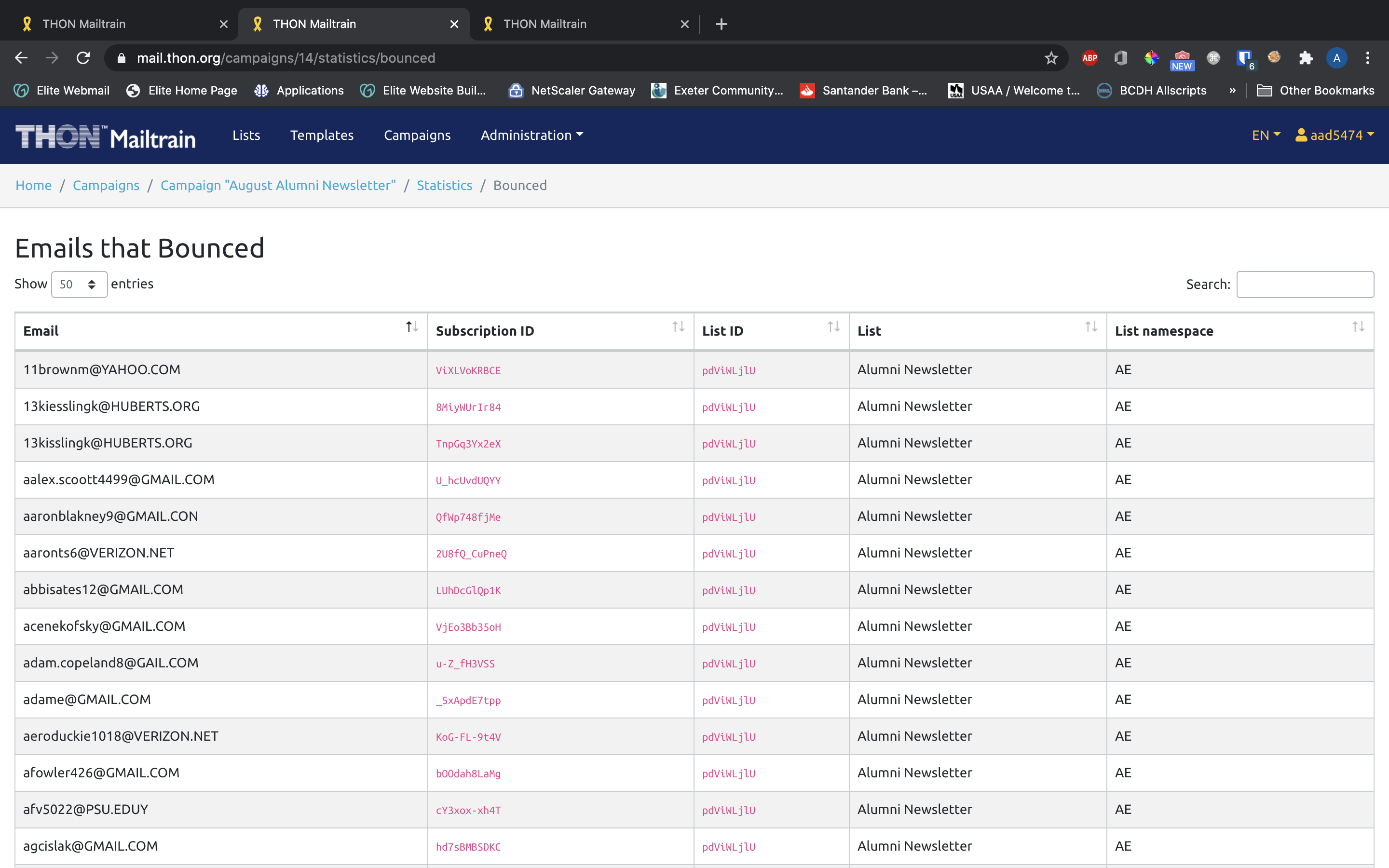
The Bounced metric displays the number of emails that were unsuccessful in reaching their target address. This is usually because the mailbox does not exist anymore, but could also be caused by full recipient mailboxes and other errors. Click the magnifying glass for an itemized list of bounced email addresses.
Bounceback Handling on Mailtrain
Mailtrain automatically unsubscribes most email addresses that bounce from their list to prevent them from being contacted in the future. They are also blacklisted to prevent other mailing lists from attempting to reach them.
Complained
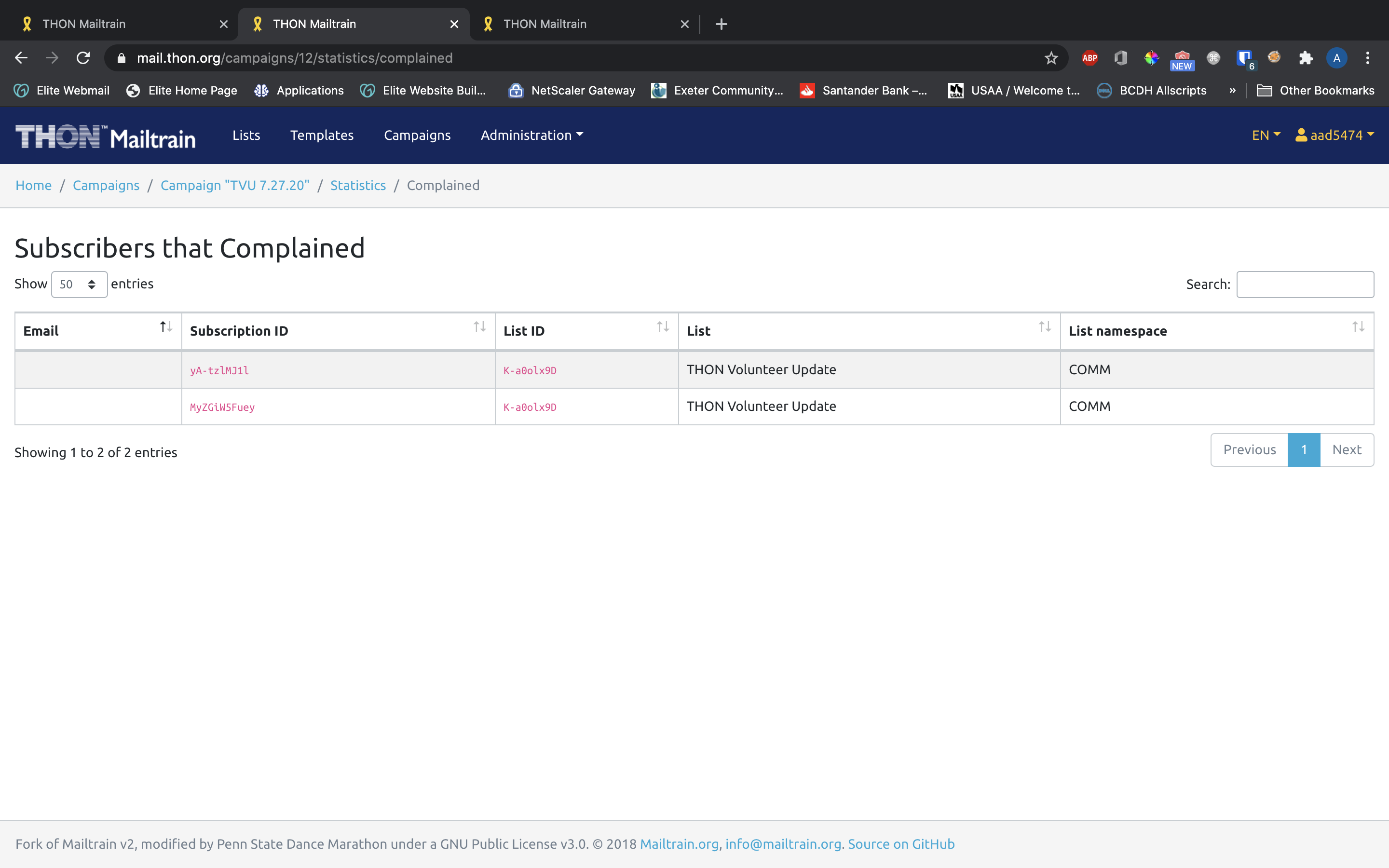
The Complained metric displays the number of users that manually marked the campaign email as Spam. Click the magnifying glass for an itemized list of complained email addresses.
Complaint Handling on Mailtrain
Mailtrain automatically unsubcribes any address that submits a complaint against one of our campaigns. Complaints can be really bad for THON - if we get too many, we risk having our email privileges revoked.
Unsubscribed
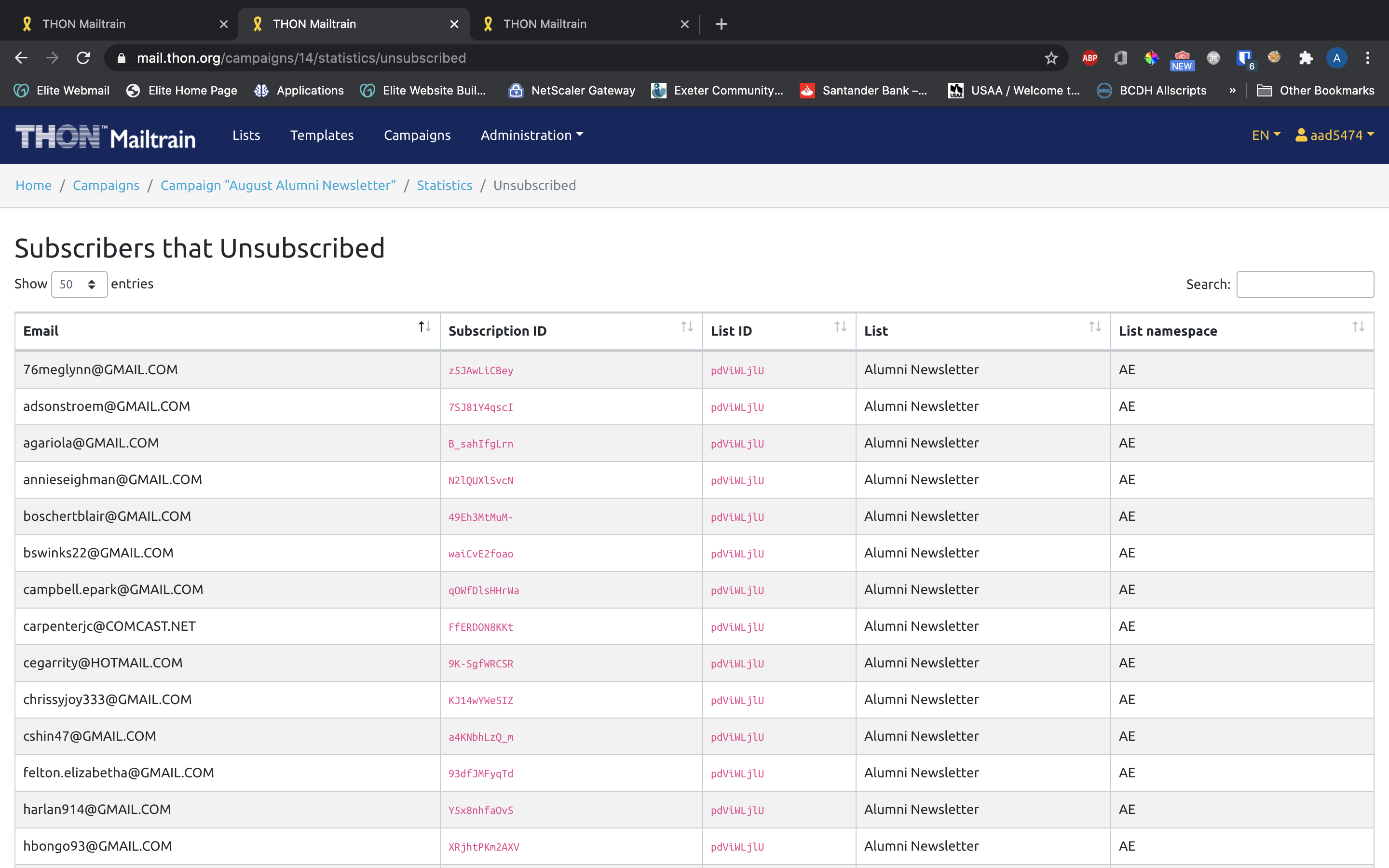
The Unsubscribed metric displays the number of users who opted out of the mailing list using the link in the footer of the email. Click the magnifying glass to view a list of users that unsubscribed.
Opened
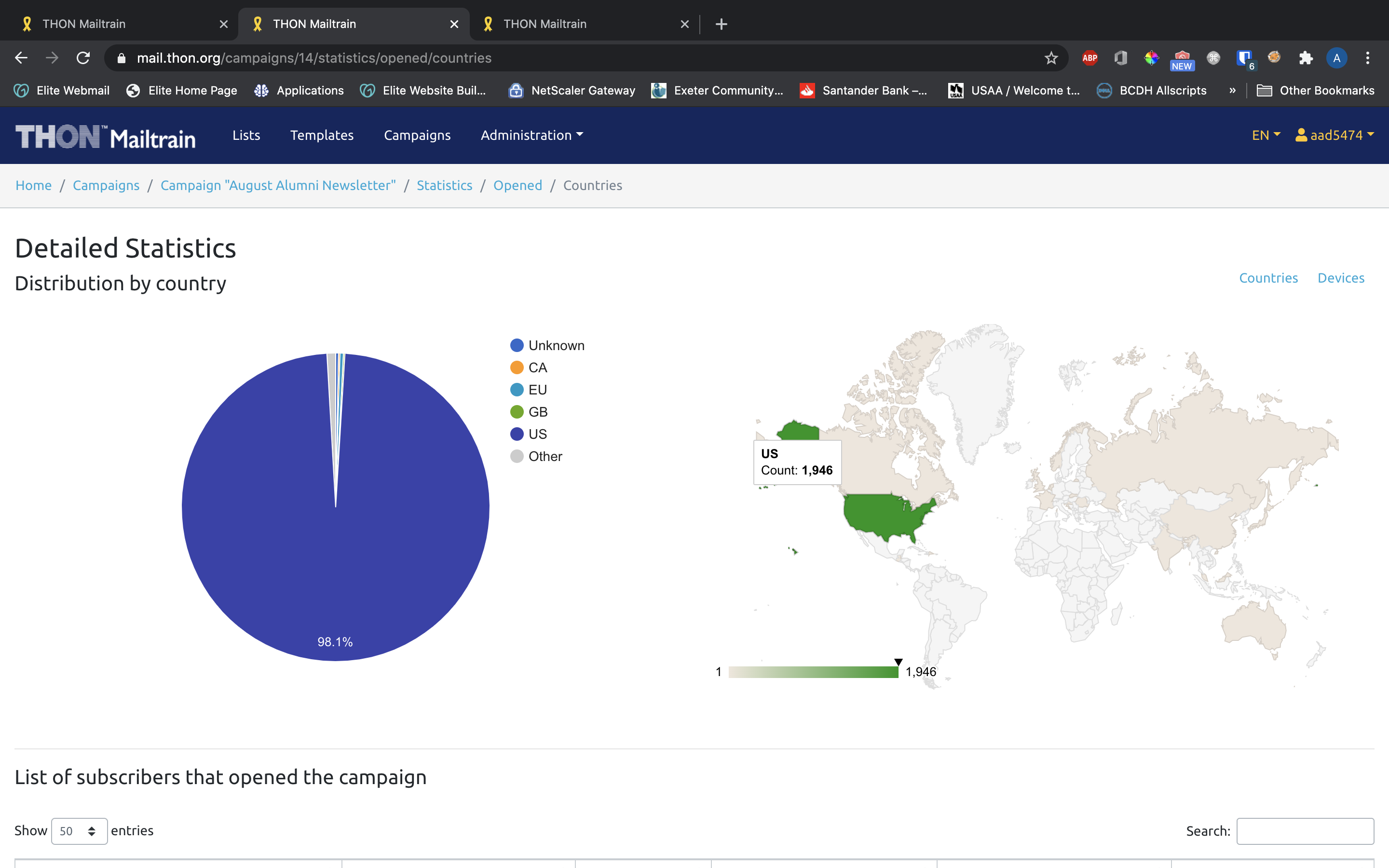
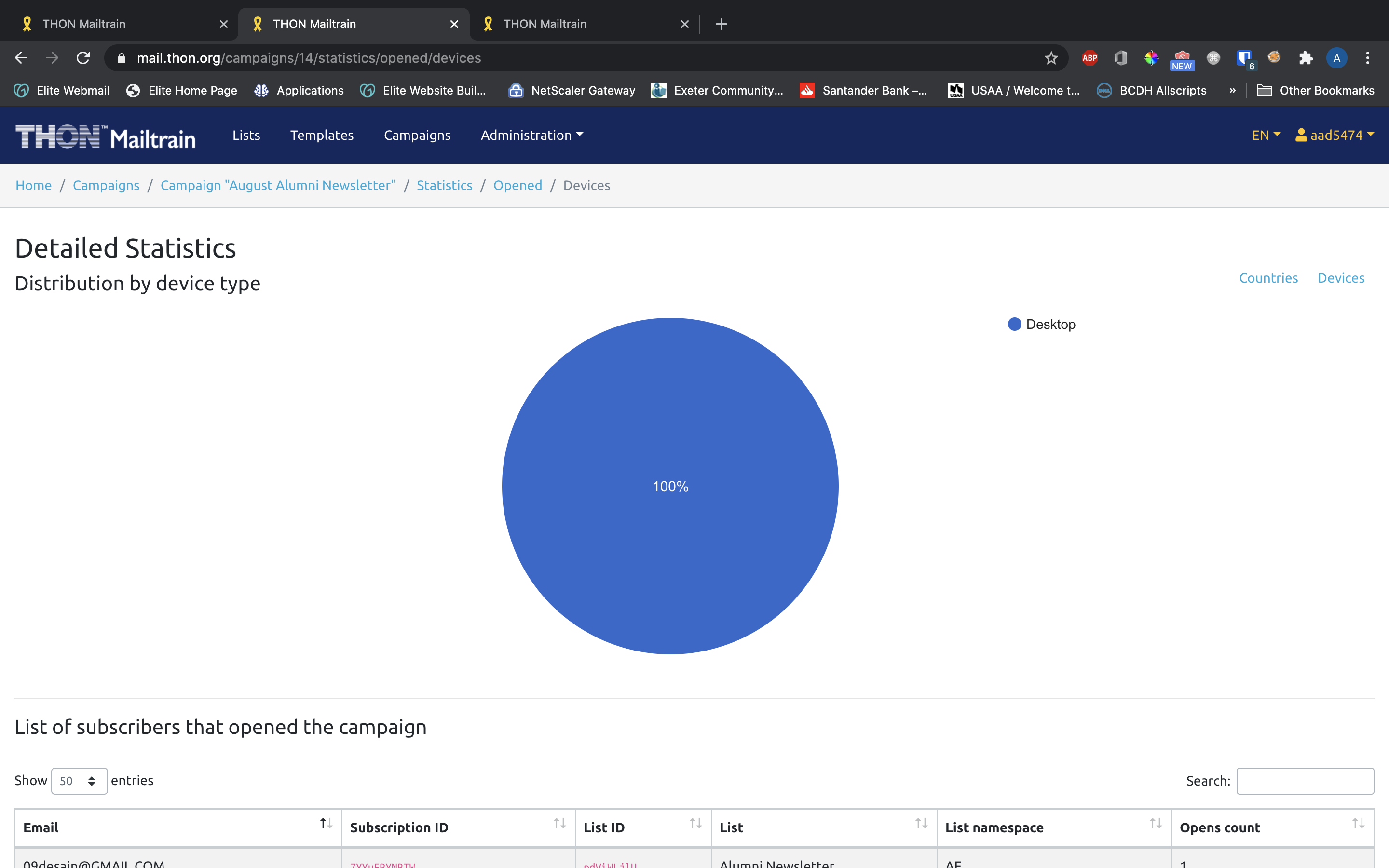
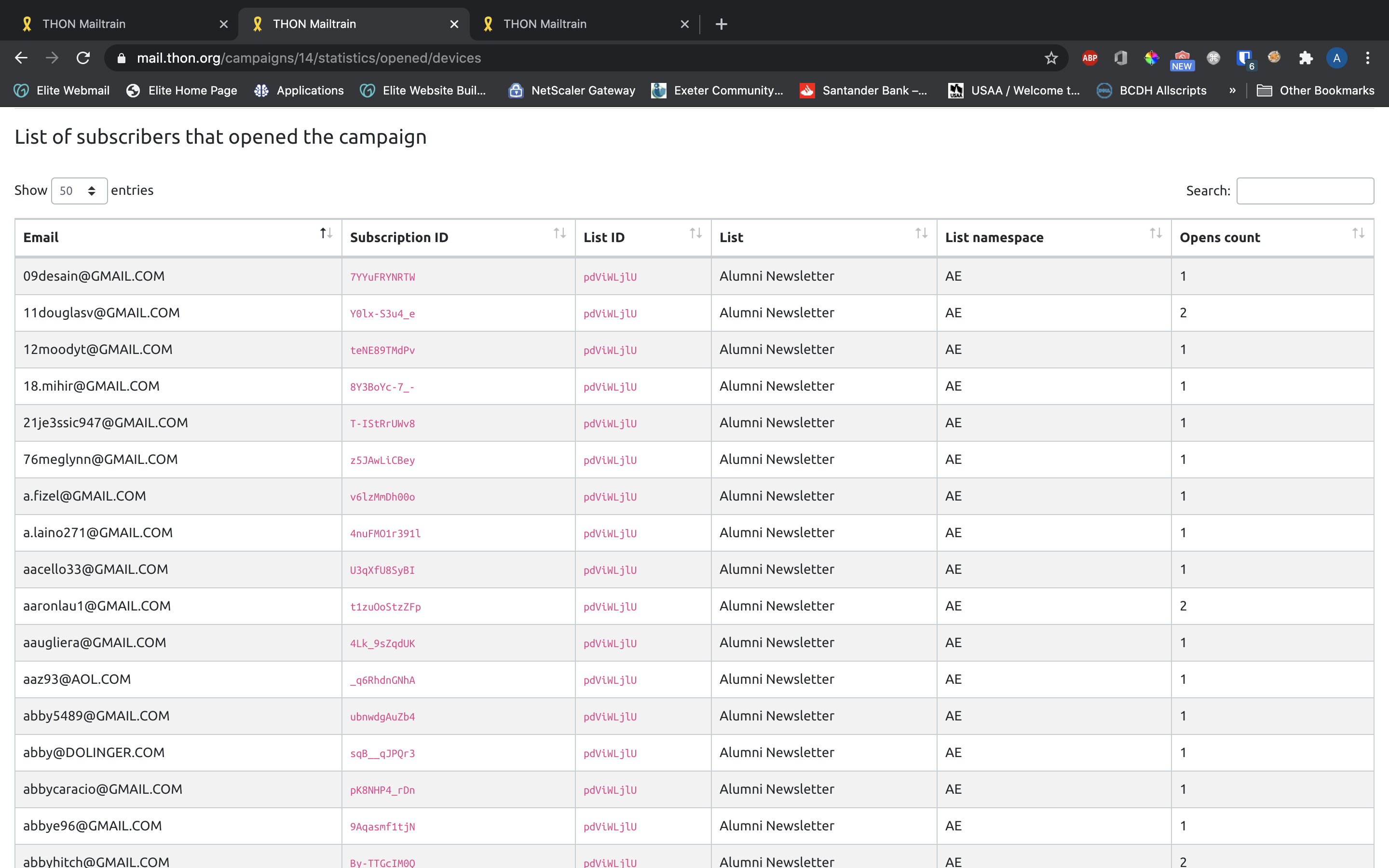
The Opened statistic tracks how many people have opened the campaign email. Clicking the magnifying glass takes you to a detailed page showing geographic location of opens, device used, and an itemized list of who has opened the message and how many times they've viewed it.
Clicked
The Clicked metric shows how many people have interacted with any link you included in your campaign email. Clicking on the magnifying glass opens an itemized list of each link in the campaign, showing the total clicks and unique visitors for each link.
Report Download
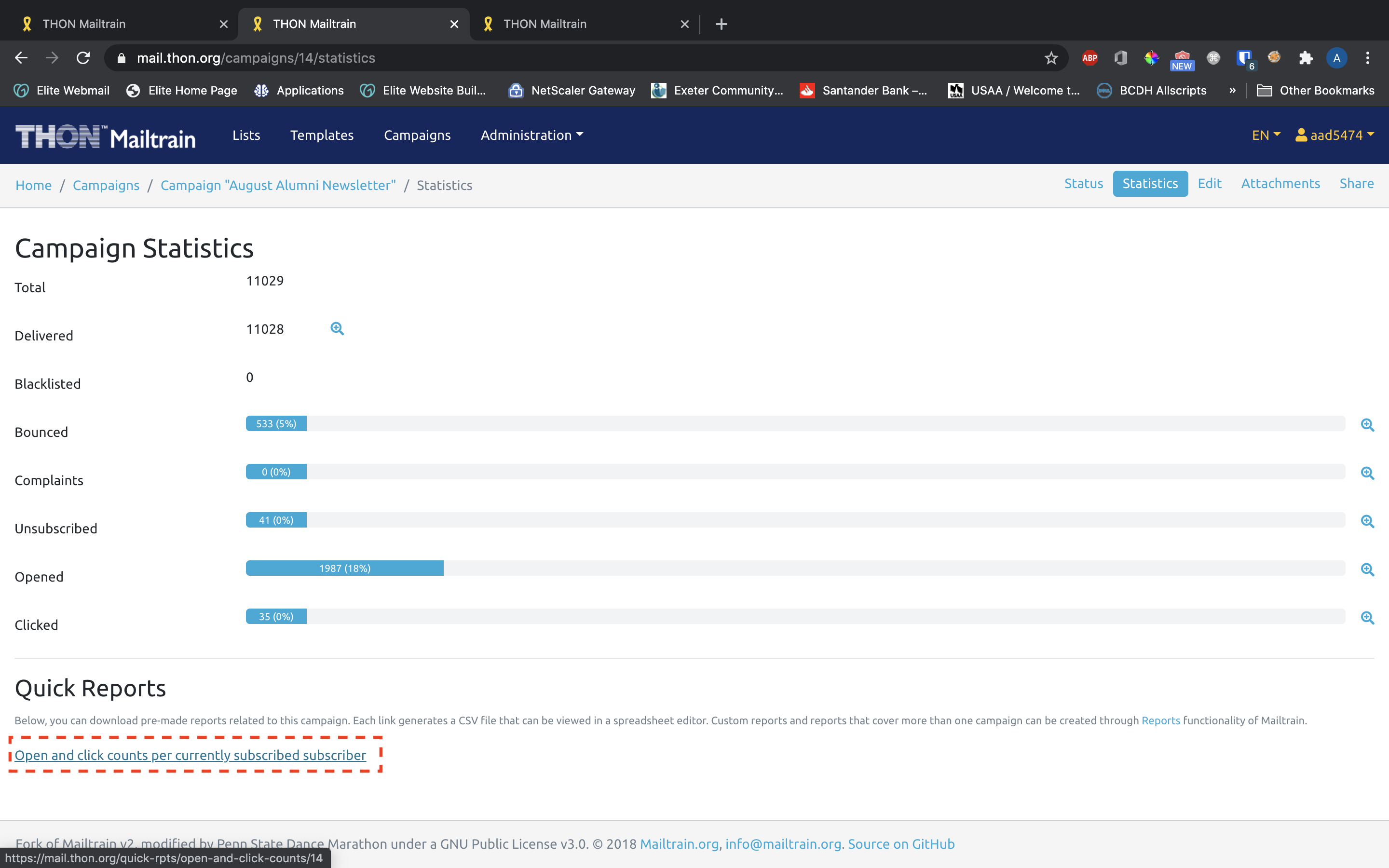
Mailtrain offers a campaign report download at the bottom of the statistics page. The CSV download itemizes each subscriber, showing their open/click count, country, date/time of first open, and device used for first open.