
Creating a List
Accessing the Create List Page
To create a list, click the +Create List button on the Lists tab.
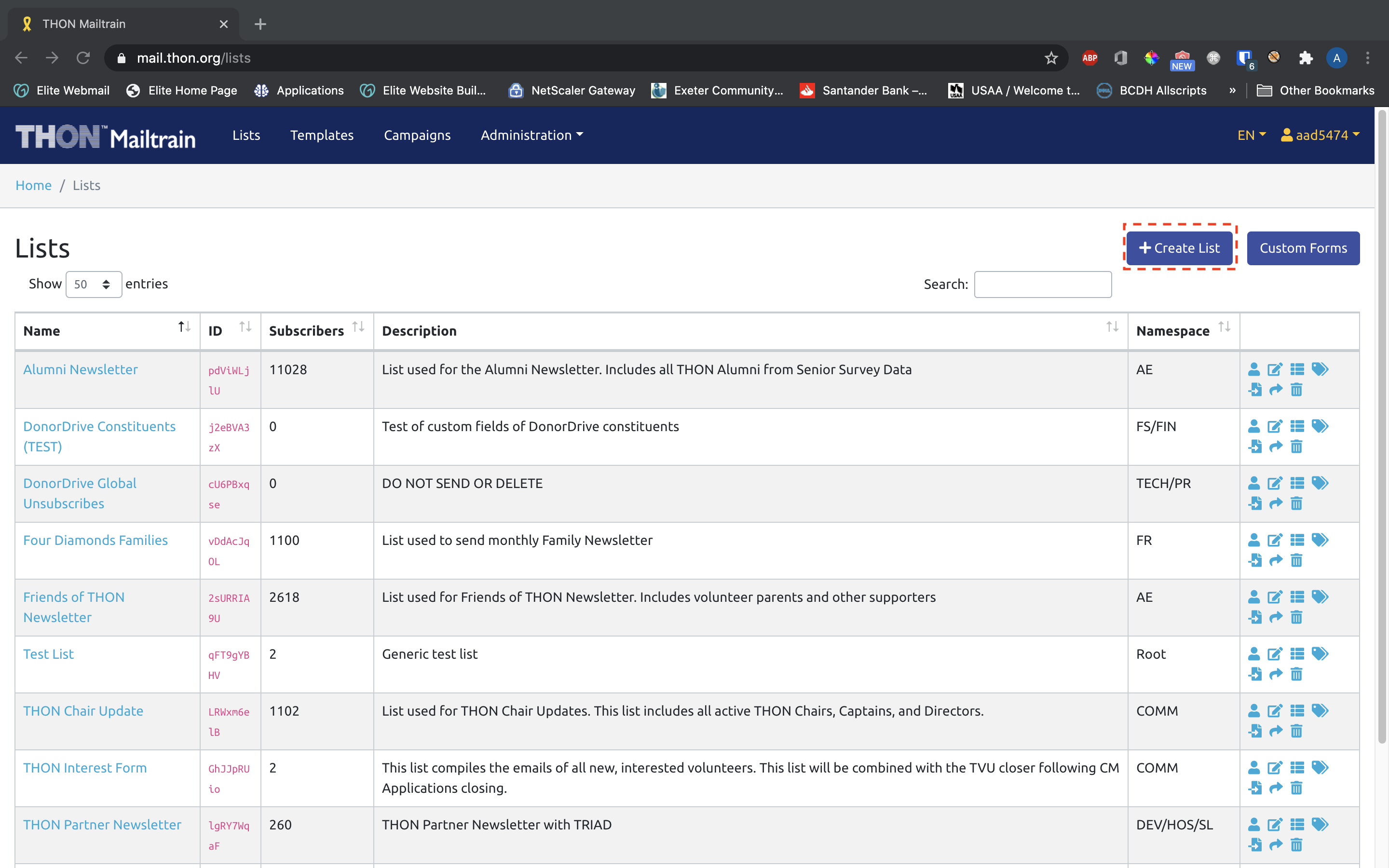
The link will take you to the following form to create a mailing list:
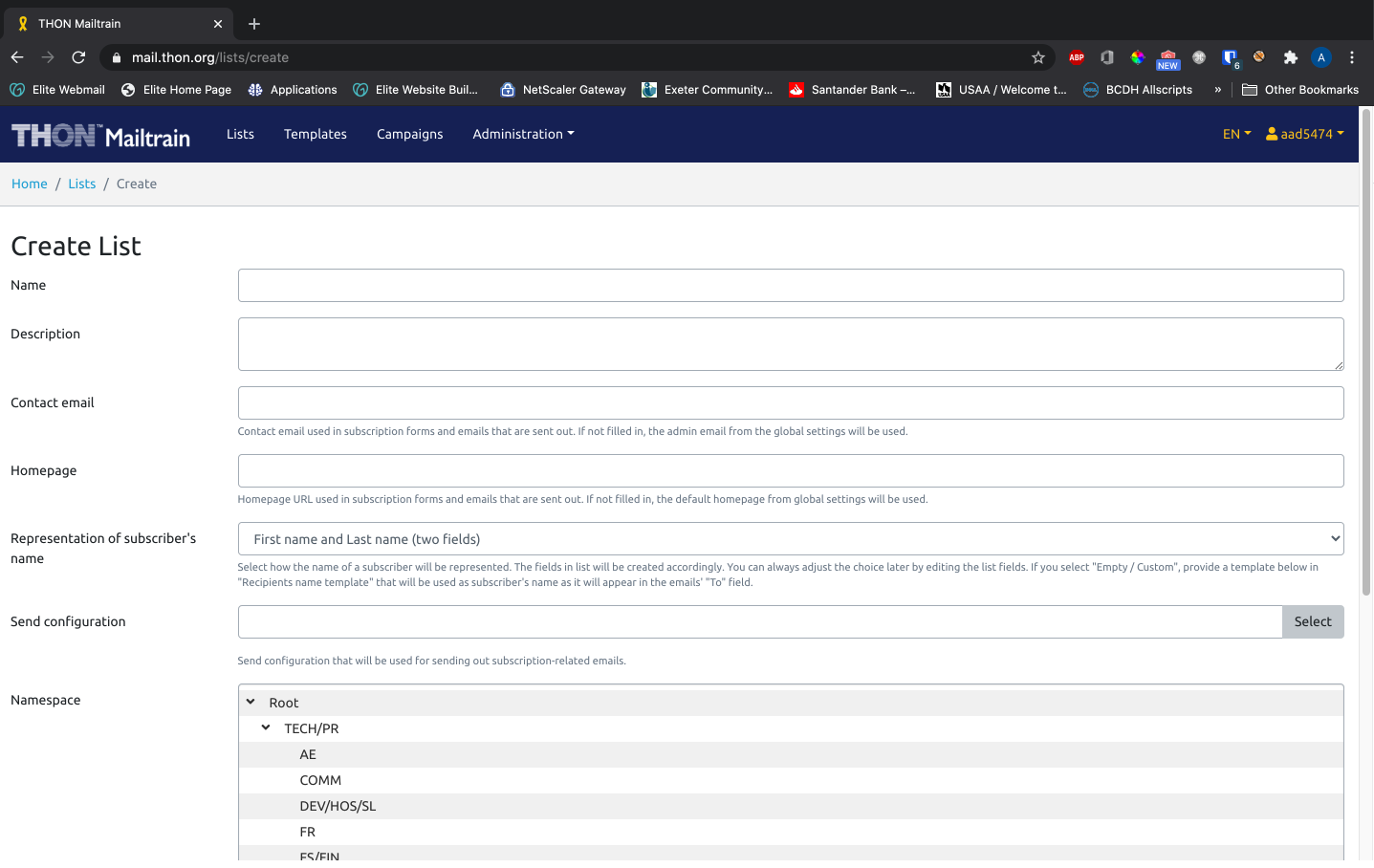
Filling out the Create List Form
You will need to fill out the following fields to create a list:
|
Field Name
|
Description of Field
|
Notes
|
|---|---|---|
|
Field Name
|
Description of Field
|
Notes
|
| Name | The name/primary identifier of the mailing list | e.g. DonorDrive 2019 Donors |
| Description | A more verbose description of what the list is and how it will be used | e.g. list of DonorDrive donors who gave during the 2019 fiscal year |
|
Contact Email |
The THON email address that emails to this list will appear from | e.g. director@thon.org, communications@thon.org |
| Homepage | Not relevant for THON use | Leave blank |
| Representation of Subscriber's Name | A choice of how you want the names of each subscriber to appear (names may not be relevant for many/most mailing lists) |
|
| Recipients Name Template | This field only shows up when Empty / Custom (no fields) is selected | Leave blank |
| Send Configuration |
A choice field that specifies how your email will be sent, such as:
|
TECH has preset configurations for each committee / group of committees, and you should only see one option in the choice field. Select the configuration belonging to your committee / group of committees. |
| Namespace | A choice field that specifies where on Mailtrain the list will live | TECH has set up a namespace for each committee / group of committees to strategically prevent mixing of each group's lists. Select the namespace belonging to your committee / group of committees. |
| Forms | The set of subscription and unsubscription forms associated with the list | Select Default Mailtrain Forms - TECH has customized the set of forms to be on-brand already. |
| Subscription | An option to provide a public URL with an opt-in form for the list | Leave unchecked - if you would like public opt-in forms, reach out to technology@thon.org first to discuss potential implications. |
| Unsubscription | A choice field that specifies how users can opt-out of the list |
There are several options; only pick from the bolded options below. If you wish to use an unbolded option, reach out to technology@thon.org for further guidance.
|
| Unsubscribe Header | Not relevant for THON use | Leave unchecked |
Click Save when you have entered all the list creation fields. Once saved, you have successfully created a mailing list. You still will need to either migrate or manually add addresses to the list before using it. To add people to the list, proceed to the next tutorial, Adding Subscribers.