
Creating a Campaign
Creating a Campaign from Scratch
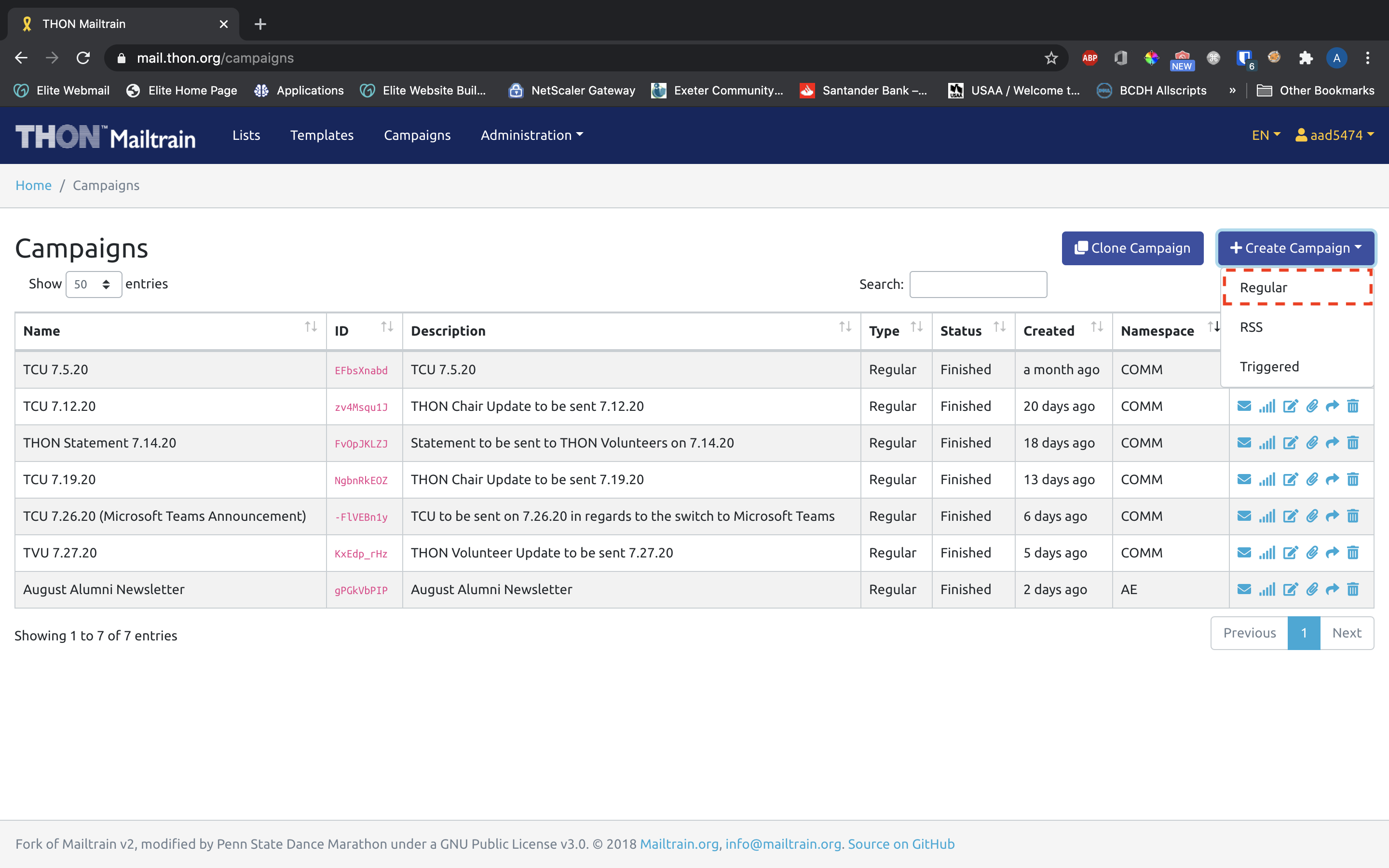
To create a campaign from scratch, click the +Create Campaign dropdown on the Campaigns tab and select Regular.
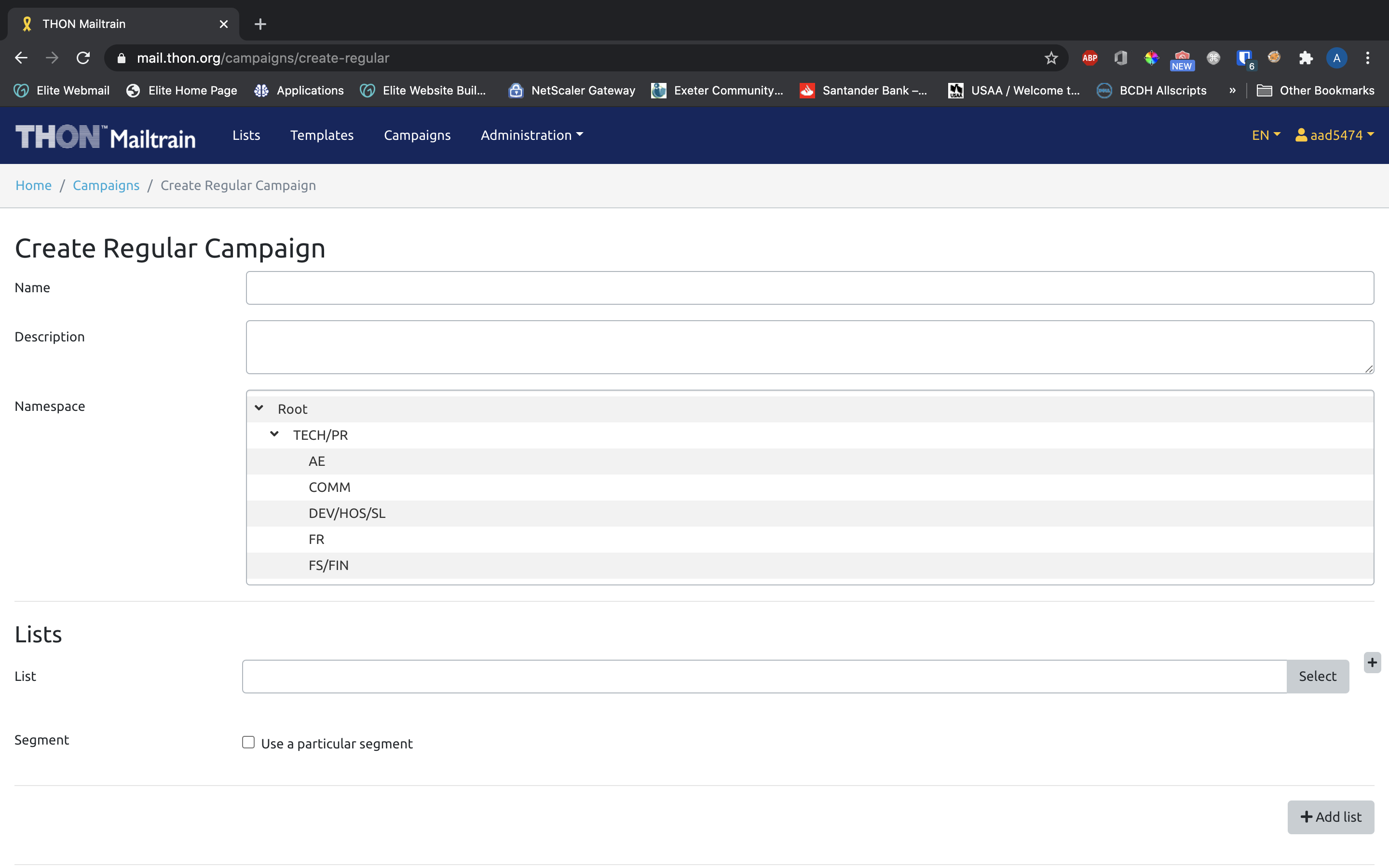
The link will take you to the following form to create a campaign:
Cloning a Campaign
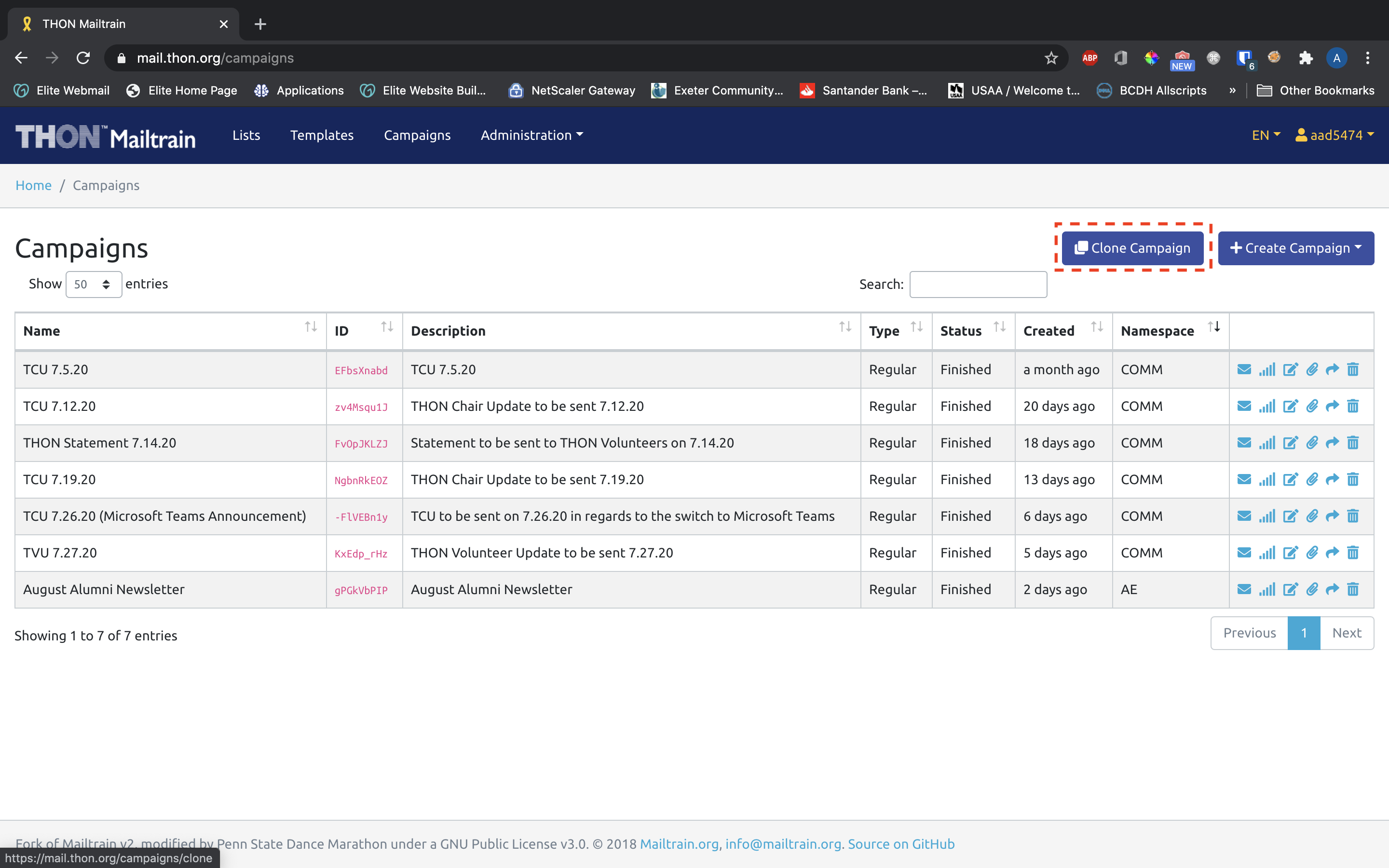
If you wish to create a campaign that is reasonably similar to an existing one, you may choose to clone the old campaign so you don't have to start from scratch. To so so, click the Clone Campaign button:
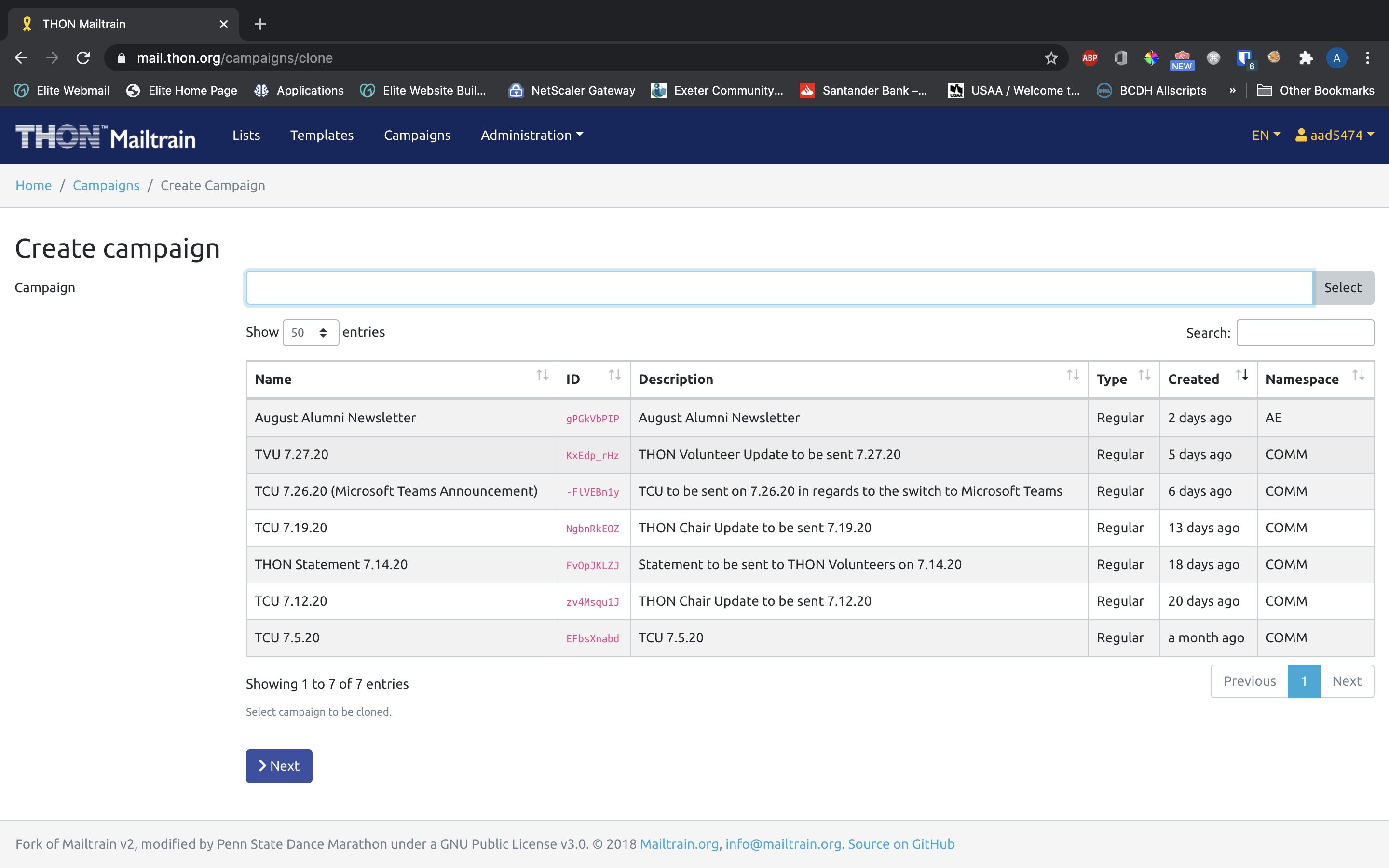
On the next page, select the campaign you wish to duplicate:
Filling out the Create List Form
You will need to fill out the following fields to create a campaign. If you created a campaign from scratch, the fields will initially be blank; if you cloned an existing campaign, the fields will be pre-populated with the values from the base campaign.
|
Field Name
|
Description of Field
|
Notes
|
|---|---|---|
|
Field Name
|
Description of Field
|
Notes
|
| Name | The name/primary identifier of the campaign | e.g. TCU 7.5.20 |
| Description | A more verbose description of what the list is and how it will be used | e.g. THON Chair Update sent on 7.5.20 |
| Namespace | A choice field that specifies where on Mailtrain the campaign will live | TECH has set up a namespace for each committee / group of committees to strategically prevent mixing of each group's lists. Select the namespace belonging to your committee / group of committees. |
| Lists | A multiple select field that defines which mailings lists or segments the campaign will be sent to | Select one or more desired mailing lists. If you would only like to use a segment of a given list, check the Use a Particular Segment box and select it. |
| Send Configuration |
A choice field that specifies how your email will be sent, such as:
|
TECH has preset configurations for each committee / group of committees, and you should only see one option in the choice field. Select the configuration belonging to your committee / group of committees. |
| Subject Line | The subject line of the campaign | e.g. THON Chair Update - July 5th, 2020 |
| Custom Unsubscribe URL | Not relevant for THON use |
Leave blank |
| Tracking | Checkboxes that allow you to disable email open and link click tracking | Leave unchecked so you can monitor the success of your campaign |
| Content Source | Dropdown to select the source of the email content itself. | Select Template. Mailtrain supports creating custom content and templates directly in campaigns, but THON does not currently use this feature. |
| Template | Select box for the template that you wish to distribute with the campaign | Select the template you've created with all campaign content |
Once you have filled out the form fields, click one of the save options:
- Save - save the campaign and continue editing
- Save and leave - save the campaign and go back to the campaign homepage
- Save and go to status - save the campaign and proceed to the staging area for launching it
After creating a campaign, you may need to add file attachments - see guide here. To launch the campaign, proceed to the guide Launching a Campaign.