
Creating a Template
Accessing the Create Template page
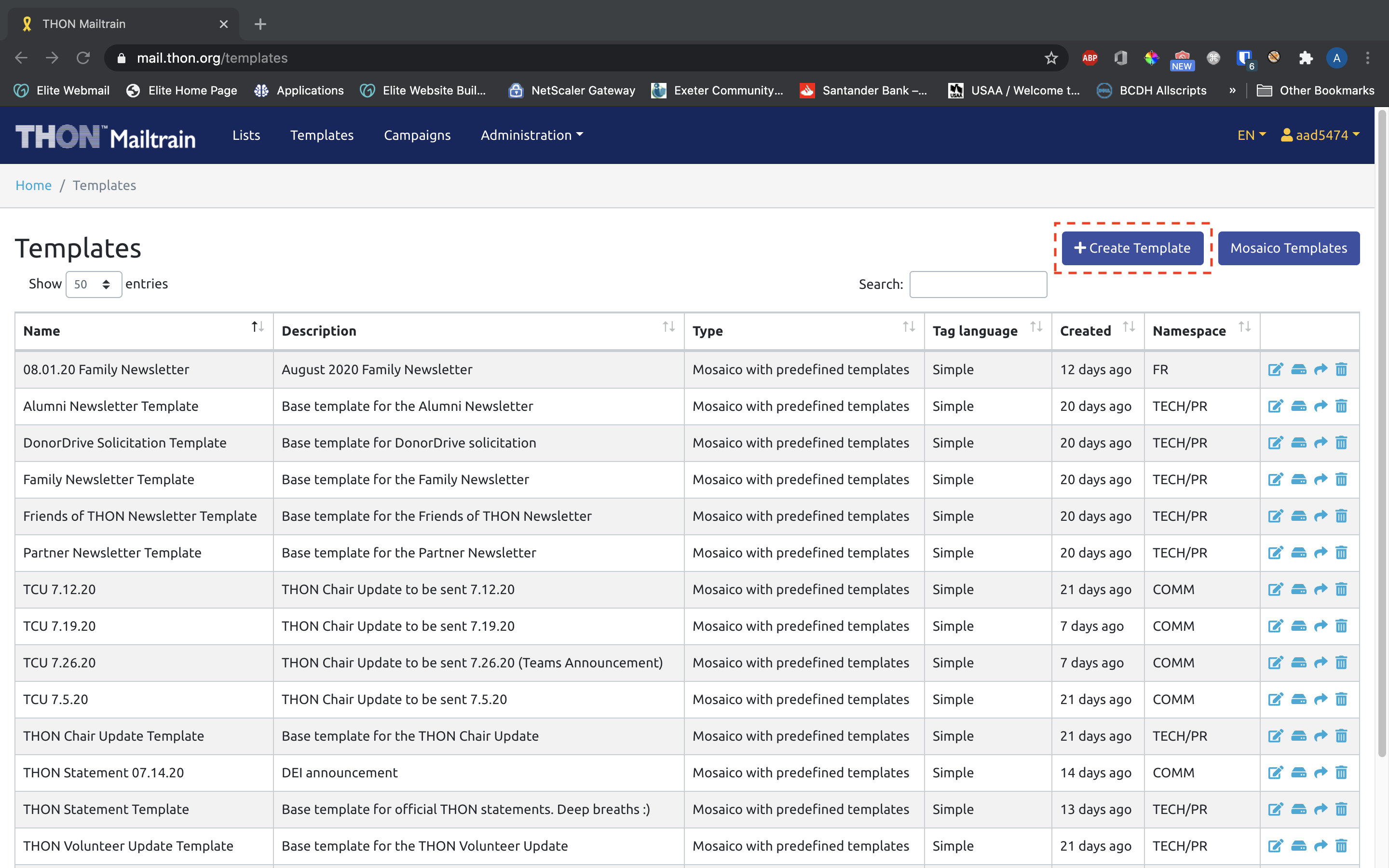
To create a template, click the +Create Template button on the Templates tab:
The link will take you to the following form to create a template:
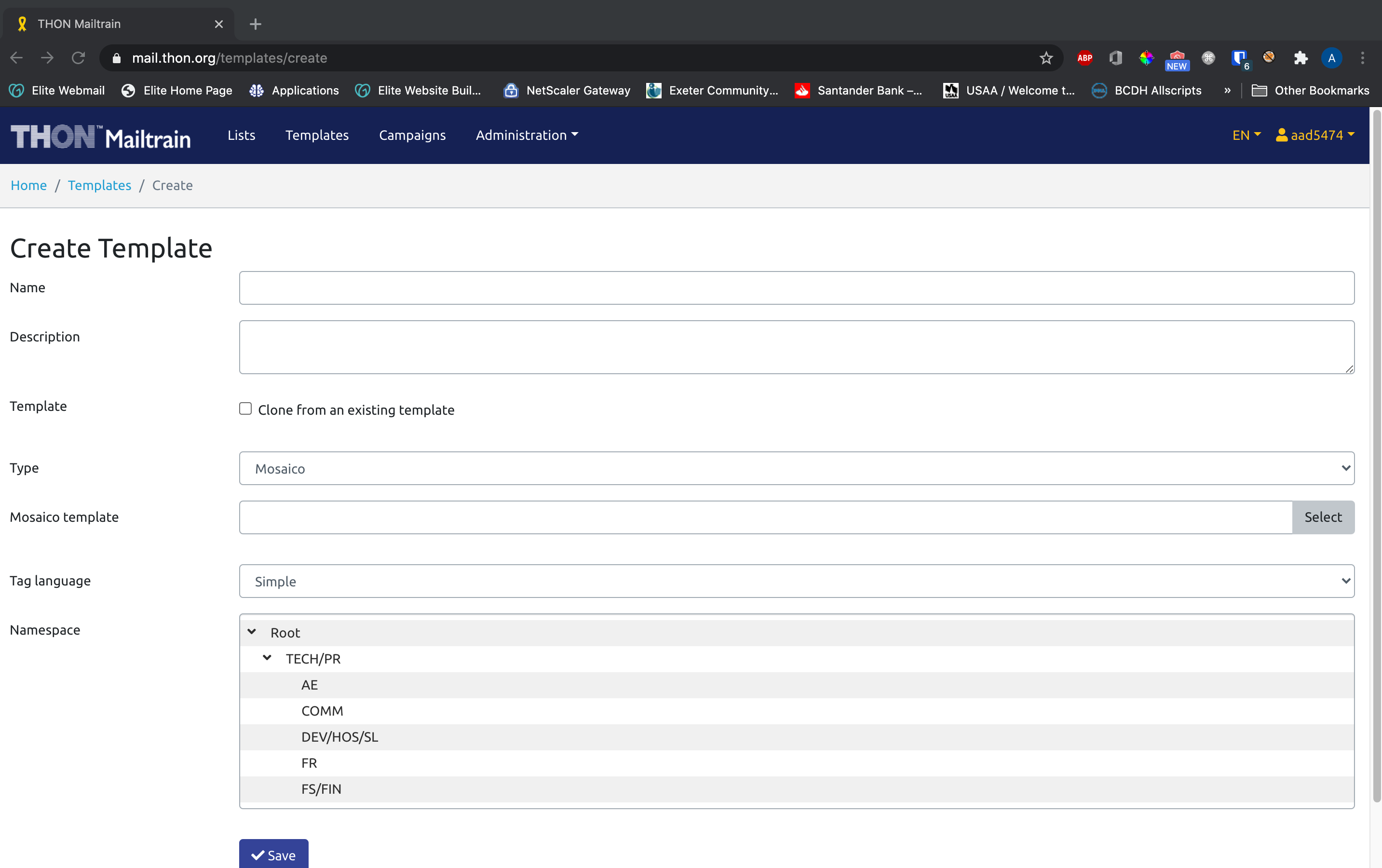
Filling out the Create Template Form
You will need to fill out the following fields to create a template:
|
Field Name
|
Description of Field
|
Notes
|
|---|---|---|
|
Field Name
|
Description of Field
|
Notes
|
| Name | The name/primary identifier of the template | e.g. Giving Tuesday Solicitation |
| Description | A more verbose description of what the template is and how it will be used | e.g. Template sent out to donors on Giving Tuesday |
| Template | If checked, this option allows you to create a template cloned from an existing one | Check this box - all created templates will stem from a set of base templates designed and administered by TECH |
| Source Template | The template from which the new template will be cloned | You will have the option to choose from the set of base templates your committee uses. There is a base template for every type of email sent on Mailtrain; i.e. TCU Base Template, TVU Base Template, DonorDrive Solicitation Template, etc. Select the base template appropriate for your application |
| Namespace | A choice field that specifies where on Mailtrain the list will live | TECH has set up a namespace for each committee / group of committees to strategically prevent mixing of each group's lists. Select the configuration belonging to your committee / group of committees. |
Click Save when you have entered all the template creation fields. Once saved, you will be able to edit the template and add contect via the Mosiaco block editor (See next tutorial, Editing a Template).